Search This Blog

Sunday, December 14, 2025

Catching up on old games in 2025

 Lets be honest. In late 2025, there are so Many games to play, and new games coming out, you just have to accept that you won't get to play them all.  There just isn't enough time.  However, if you're like me, you have a ton of games to play and catch up on. And that actually works really well for budget!

I recently picked up an NVidia GTX 3070 Ti for $305 on E-Bay.  It is working perfectly, and I need to log into ebay and give the seller a great rating soon.

Anyway, with the 3070, a lot of titles I never had time to play or finish will run smooth as butter at the highest settings.

Here is my collection either on the HDD or SSD on my PC now, sorted in order since last played.  What have you been playing?  What am I missing?  Love to hear your comments.


Some of the games I purchased for the game files.  I use other engines & mods for games like KSP, Quake, Doom, Heretic & Hexen. If you'd like to hear more about the customizations and Mods I do. Please leave a comment.

Saturday, December 13, 2025

Improve Steam Game Patching Speed

Game was patching slow (Helldivers 2)

Low mbps (200) taking forever

Game disk was SSD but Steam using old Game Location (HDD) and Random IO was slow

Made Script to Improve:

  • MAKE SURE TARGET SSD HAS ENOUGH SPACE
  • MAKE SURE BOTH FILE SYSTEM TYPES ARE 'NTFS'

Desktop Production View


# Move-Steam-Downloading-To-SSD.ps1
# Run PowerShell "As Administrator"

$D = "D:\SteamLibrary\steamapps\downloading"
$E = "E:\SteamLibrary\steamapps\downloading"

function Assert-Admin {
    $isAdmin = ([Security.Principal.WindowsPrincipal] `
        [Security.Principal.WindowsIdentity]::GetCurrent() `
    ).IsInRole([Security.Principal.WindowsBuiltInRole]::Administrator)

    if (-not $isAdmin) {
        throw "Run this script as Administrator (needed for mklink)."
    }
}

function Ensure-Dir($path) {
    if (-not (Test-Path $path)) {
        New-Item -ItemType Directory -Path $path | Out-Null
    }
}

Assert-Admin

Write-Host "Attempting to stop Steam (ignore errors if it's already closed)..."
Get-Process steam -ErrorAction SilentlyContinue | Stop-Process -Force -ErrorAction SilentlyContinue

# Ensure parent directories exist
Ensure-Dir (Split-Path $D -Parent)
Ensure-Dir (Split-Path $E -Parent)

# If E:\...\downloading exists, rename it to downloading.old (with timestamp if needed)
if (Test-Path $E) {
    $oldBase = Join-Path (Split-Path $E -Parent) "downloading.old"
    $old = $oldBase
    if (Test-Path $old) {
        $stamp = Get-Date -Format "yyyyMMdd-HHmmss"
        $old = "$oldBase.$stamp"
    }
    Write-Host "Renaming SSD folder:`n  $E`n-> $old"
    Rename-Item -Path $E -NewName (Split-Path $old -Leaf)
}

# If D path is a junction already, remove it (so we can move/create cleanly)
if (Test-Path $D) {
    $item = Get-Item $D -Force
    if ($item.Attributes.ToString().Contains("ReparsePoint")) {
        Write-Host "D folder is a reparse point (junction/symlink). Removing it:`n  $D"
        Remove-Item -Path $D -Force
    }
}

# Move D:\...\downloading to E:\...\downloading (if it exists)
if (Test-Path $D) {
    Write-Host "Moving HDD folder:`n  $D`n-> $E"
    Move-Item -Path $D -Destination $E
} else {
    Write-Host "No HDD downloading folder found at $D (creating empty target on SSD)."
    Ensure-Dir $E
}

# Create junction from D to E
Write-Host "Creating junction:`n  $D`n=> $E"
cmd /c "mklink /J `"$D`" `"$E`""

Write-Host "`nVerification:"
cmd /c "dir `"$([System.IO.Path]::GetDirectoryName($D))`""
cmd /c "fsutil reparsepoint query `"$D`""

Write-Host "`nDone."
Write-Host "Steam should now see D:\...\downloading, but it will actually use the SSD at E:\...\downloading."
You may need to enabled Windows PowerShell Script Execution Policy for the Current User. When you successfully Run the script, it will take time to move the original Steam downloads data to the destination device you want to use (to NVMe SSD from HDD, 114 GB "reserved" for Hell Divers 2 in this case).

Desktop Production Running Script to Improve Steam Patching Game


"Why did I have to create this script and move the data? Why was steam using the D: for the Download Cache instead of the E: drive even though the game is installed on the E: drive? This seems like the wrong drive."

Steam’s “download cache” isn’t “the drive the game is on.” It’s “the Steam library folder (or client install folder) Steam has decided to use for staging,” and that choice can easily end up being your HDD even when the game files live on the SSD.

The key idea: Steam updates aren’t written straight into the game folder. Steam typically uses a staging area (steamapps\downloading, sometimes plus other cache folders) to download chunks, unpack/decrypt, and apply deltas. Steam picks where that staging lives based on library association and configuration, not on where you think the game “is.”

Common “why did it pick D?” reasons:

  • The app is logically associated with the D: library (even if you manually moved the game files at some point, or the manifest stayed on D:). Steam uses the library containing the app’s appmanifest_*.acf to decide staging. If the manifest is under D:\SteamLibrary\steamapps, Steam will stage under D.

  • D: was your default / primary library at the time of install/update. Steam will keep using that library for that app unless you explicitly “Move install folder” inside Steam.

  • Steam client caches can live where Steam itself is installed. Even if the game is on E:, certain caches (appcache, depotcache) may still hammer the drive that contains steam.exe.

  • Steam doesn’t automatically optimize for SSD vs HDD. It follows its rules: “use the library/client path I’m configured for,” not “use the fastest disk.”

So it feels like “the wrong drive,” but it’s Steam behaving consistently with its internal mapping: game location and staging/cache location are related, but not guaranteed to match.

Why your script/junction helps:

  • If Steam insists on using D:\SteamLibrary\steamapps\downloading, you can “lie” to it safely with a junction so it still uses the path it expects, while the I/O lands on E:. This is especially helpful because downloading is often random-I/O heavy, where an SSD can be dramatically faster than an HDD.

If you want a “Steam-native” fix (no junction), the usual solution is:

  • Steam → Settings → Storage → select the game → Move to the E: library

  • Also set E: as the default library

  • Ensure the relevant appmanifest_*.acf ends up under E:\SteamLibrary\steamapps\

But if Steam keeps choosing D: for staging anyway, your junction approach is a perfectly logical workaround.

Thursday, June 18, 2020

Linux, Newest Kernel, Old Hardware, Windows 10


I just had to do this post!  August will be 4 years of great performance for this Dell Precision 7710.  Kudos to Dell for great hardware design. I did an in depth review here in August 2016, Linux, Newest Kernel, Newest Hardware, Windows 10 when I first set up the system.

First, big Shout Out to one of my best friends and co-workers that introduced me to Debian, Nate!  Thanks for all the tips and support over the years.  Even though you couldn't keep up w/ the bleeding edge that is... testing! LoL

Next, I must say the folks at Oracle have done great at keeping VirtualBox Free to use at home, and stable enough to keep upgrading the same VM for four years.  Also, great work with the new VBoxSVGA graphics controller with 3D acceleration.  It not only works great, but screen resize and responsiveness with graphics intensive applications is flawless, even on this older Quadro M!

Microsoft, I'm shocked.  I thought for sure I would be wiping this VM at some point. Never did I think it would be running my entire Windows Experience flawlessly virtualized with Office, VPN and Updates for years.  I have almost 4 years of content packed in there!   I even use the USB passthrough with Web Cam and Smart Card reader, to support the use of Skype!

Last but not least, Linux Debian community.  Your packaging and persistence to compatible releases and regression tests has helped keep us Debian users stable.  At this point I'm running on Buster, and have made significant upgrades.

I can't recommend this configuration enough.  Only down side has been the Broadcom 5580 Smart Card reader, which has been broken in Virtualbox for at least 10 years.  USB card readers work just fine.

I should also say I spent a few years doing photogrammetry development.  That means this machine's CPU has been pegged at 100% for >24 hours continuously, while enormous amounts of disk have been consumed and deleted, with thousands of small to large (4GB+) files.  It is an absolute work horse.

I've also carried this thing around the U.S. and dragged it through airports and scanners on multiple occasions.  The disk is still encrypted with LVM, and I've updated the password more times than I can remember at this point.

Pleased to say I am now smoothly running with:

VirtualBox 6.1.10
Windows 10 Pro Build 18362.19h1_release.190318-1202
Debian 4.19.118-2+deb10u1 (2020-06-07) x86_64 GNU/Linux

The only question now is, when do I get a new PC?  I still have 32 GB of RAM, 8 Logical CPUs running on a 6th Gen Core i7.  The GPU is totally adequate for almost all workloads, and the SSD SMART logs show no issue with the hard drive.  Wifi is fine, as well as sound.  All pluggable ports work well and the Keyboard and mouse pad has no issues or stuck keys. The backlighting for the keyboard still works as well.

One thing I did not cover in the original post (because I must have not seen the error) is the microcode for the Intel Chipset.  Make sure to install that if you see the TSC_Deadline Failure during boot. This was a "WARNING" i saw for years and ignored.  It may have effected performance but I didn't notice.  Nevertheless, I aim to understand all errors on my Linux PC, and solve them.


TSC deadline support is nice to have, but not vital. The kernel has an elaborate framework for timekeeping and timed event handling; TSC deadline is one possible implementation of event handling, but not the only one. On CPUs which support it, it is nice to have though, because it’s very efficient.

To upgrade your microcode and hopefully re-enable TSC deadline support, you can install the microcode update packages from Debian’s contrib and non-free repositories. To do so, edit your /etc/apt/sources.list to ensure that your Debian repository definitions include main, contrib and non-free; then run

# sudo apt update

followed by

# sudo apt install intel-microcode

(for Intel CPUs) or

# sudo apt install amd64-microcode

(for AMD CPUs). Once that’s done, reboot, and your microcode should be updated. If TSC deadline support is re-enabled, you won’t see the error message at boot, and you’ll see tsc_deadline_timer in the flags lines of /proc/cpuinfo.

The Debian wiki has more information on microcode updates.

Saturday, February 8, 2020

Synology Follow-Up

In the previous post (https://championofcyrodiil.blogspot.com/2020/02/synology-home-nas.html) I configured the Synology DS218j through a virtual network using an Ubuntu VM as the DHCP Server.  Today I wanted to back up some of my files, so I needed to configure some kind of share.

Enable SSHd on the VM

  1. $ sudo apt-get install -y openssh-server
  2. $ sudo systemctl enable ssh.service
  3. $ sudo systemctl start ssh.service

Create an Account on Synology

You will need an account to connect to on the Synology.  You could use the admin account, but don't.  This was easy enough and walking through the Wizard after clicking "Users" somewhere in Control Panel, I created an account named 'charlie'.  
The Control Panel is easy to find when you log in with the Web Browser on port 5000 over HTTP
HTTP is Plain-Text and thus Not Secure.  This is another good reason we are working on a private virtual network, as there are no other devices that could be snooping.

Check SMB Settings

By default SMB is enabled, but I discovered I needed to enable SMB version 3.0 on the Synology!  You'll find this under the "Advanced" SMB settings. 


Create a "New Folder"

Creating an account by itself does not create a Share/Folder that can be accessed from a remote client.  You'll need to create a new folder as well.  Again, the UI is intuitive and you should be able to navigate to "Folders" in the control panel, and create a new one, giving your user account created in the previous step "Customized" permissions.  I enabled "Full Control".  


Also, when creating the folder I set a password and enabled disk Encryption.  Filename lengths are restricted to ~170 characters in your storage folder if encryption is enabled.

Mount the Synology Share using CIFS

You'll need to install 'cifs-utils' using apt-get install first.  Then you can easily add the entry to the /etc/fstab using sudo.

Note the 'user' option.  This allows you to mount with the 'vubuntu' user, making it read/write approved for the SSH User.  Using `sudo mount` works too, but then accessing the VM remotely would require an SSH as root.  You can only SSH as root after modifying the "PermitRootLogin" setting in /etc/ssh/sshd_config.

Was all that Worth it???

I would have to say it was.  The goal was to back up my Desktop PC's data to the Synology, and I've achieved peek throughput of 540 Mbps while using WinSCP to move files from the Desktop's E:\ Storage drive to the Synology over the Cat5 cable.  Which is 67.5MB/sec.

While the connection is 1Gbps, Secure Shell and Virtualization are at play.  Again, this isolates the Synology from the web, while still providing high throughput.  Don't forget to run your Virus Scan on files before backing them up!


Synology Home NAS

Virtual Networked NAS

Everything Configured from My Desktop PC running Windows 10; Color-Coded based on Trust, where Green is obviously the most trusted.

Purchase and Put Together:

Total: $386.42
Both Seagate IronWolf 4TB Drives Installed in Synology DS218j

Create Virtual Switch for Desktop NIC:

  1. From Hyper-V Manager, Click "Virtual Switch Manager" on the Left-Hand "Action" Panel
  2. Select "External" for Create Virtual Switch Type
  3. Set Name as value that will be intuitive for your Desktop NIC. e.g. 'Wired External Switch"
  4. Choose the Ethernet Device Connected Directly to Synology NAS Device
Creating an External Switch in Hyper-V
Think of this as a 'physical' switch between your CPU and Network Card, with only 1 port (Your NIC!)

Create Virtual Machine and Install using ISO


Don't forget to add a second virtual NIC to the VM and attach it to the previously created external switch.
Creating "Dual-Homed" VM w/ 2 Virtual NICs
One for Synology, One for Internet(NAT)

Static IP for "Wired External Switch"

You've now got everything connected.  When you boot ubuntu you'll see 1 NIC has an IP (dhcp) from Hyper-V and provides Internet Connectivity.  The second is not enabled at all.  You'll need to enable this by editing /etc/network/interfaces as follows:
Configure Ubuntu to have a Static-IP.  This is normal for Servers that provide DHCP
Ensure 'eth0' or 'eth1' corresponds with the External Switch chosen above.
'sudo ifup eth0' will bring your NIC online after editing the interfaces file

DHCP Configuration (This part can be tricky)

I've used the 192.168.10.0/32 network in this example to match up with the information provided in the link above.  Make sure to check your syntax after editing the file.  `ps -ef | grep dhcpd` should show the server is running.  If there are errors, use `journalctl` to view any errors, fix them, and use `sudo systemctl restart isc-dhcp-server.service`.  Once DHCP is running and everything is connected, you should see a Lease for the Synology using `cat /var/lib/dhcp/dhcpd.leases'.

Make sure to enable 'authoritative' DHCP, since this DHCP server is the only one on this External Switch.

Set up your Synology, Download the OS with VM

When the Synology gets an IP, it should get the first IP in your DHCP range. For me this was 192.168.10.10.  Inside your VM, open a browser and go to http://192.168.10.10 
You will be redirected to set up the device.  Your device wont have an internet connection because we did not configure the VM to act as a gateway/router.  So you'll need to click the link provided in the Synology setup, and Download the OS software to the VMs Downloads folder.  Once complete, verify the checksum `md5sum ~/Downloads/DSM_DS218j_24922.pat`.  This ensure you are getting the right software and no corruption occured during download.  Then switch back to the Synology configuration Tab, and Choose "Select a File/Browse", navigate to the Downloads folder, and 'upload' the .PAT file to the Synology via the web interface.  Finish the configuration and make sure to remember your NAS does NOT HAVE INTERNET CONNECTIVITY.  This is so that you can ensure it is secure and not downloading software you do not explicitly provide.

Once configured using Defaults, you should have 2 drives providing redundant storage with 3.6TB of Storage

What Next?

Now that everything is connected you'll want to think about how you want to access your synology from other devices.  You could simply connect the Synology to your Wifi Router now and access it via wifi.  However, this would expose it to the internet, so make sure you want to do that.

Another option would be to configure the Virtual Machine as a "Reverse-Proxy" for HTTP/HTTPS or set up the routing tables to forward specific ports and provide NATing back to the requester.  There are several possibilities at this point and I hope you have found this tutorial useful and informative.

Read more on how I configure SMB w/ SCP between the Host OS, VM and Synology devices in the next post, https://championofcyrodiil.blogspot.com/2020/02/synology-follow-up.html

Saturday, June 15, 2019

2005 Ford Expedition A/C Compressor Bypass Belt

Here are the signs your A/C is failing and you're in for some serious repairs.
  1. You smell a burning while A/C is running.  Not like burning rubber, more like burning electronics or wires/metal.
  2. You immediately turn off the vehicle because of the smell, and then later when you turn it on, NOTHING happens.  No turn over, no rough start, just a click and silence.
  3. Your Battery is fine, the starter is fine, and MAYBE it starts up again a while later.
In my case, this was the A/C failing.  The compressor is depicted below as part #9. It is part of the serpentine belt pulley configuration. #8 is the crankshaft pulley connected to the engine, and as you can see, WILL NOT TURN OVER IF ANY OF THE OTHER PULLEYS ARE SEIZED.  This is because the Starter (which starts the engine by turning over the crankshaft) doesnt have enough 'juice' to force the frozen pulley.


In my case, #9 froze up so tight the belt started squealing, burning up, and snapped in half.  These belts typically only handle a little over 260°F before they break.  With #9 seized up, and a 5.4L V8 forcing the belt to slide around it, eventually it will heat up and break.  At that point all of the check engine lights come on your dashboard, and you will lose power generation (battery wont charge, #3), power steering (hard to turn the wheel, #5), Cooling for the Engine, (overheating, #7) which will result in the need to replace the engine if it gets too hot (>190-210°), and of course A/C (#9).

So, now you have no belt, and #9 is seized.  You could have it towed, and spend $1500+ dollars getting the A/C components replaced, flushed, and re-charged.  In my case, I had pulled forward in to my driveway and wanted to do the work myself, but needed to move the vehicle.   So I started looking in to 'bypassing' #9!

This would look something like this.


If you're paying attention, you might notice the most obvious issue here is figuring out how long the new belt needs to be.  Another thing I chose to do was replace pulley #2.  Not only are the bearings likely old on this pulley, but in my case the pulley is 'smooth' and not 'grooved'.  I was concerned about the belt 'slipping' off the pulley, so i replaced it with an aftermarket pulley.

To figure out how long of a belt you need, use a piece of string and run it through the same path.  Measure the string and purchase a belt of the same length.

On my 2005, 5.4L V8 Expedition the options are:
  • Duralast 840K6 - 84.06" (Bypassing the A/C Clutch Pulley)
  • Duralast 1015K6 - 101.5" (Stock Belt, including the A/C Clutch Pulley)
(Duralast is just what is at my local autozone.  Just make sure to compare size, rib count, etc.)
You may notice on websites like Autozone, you cannot search by 'length', only by part number.  The pattern for these duralast belts seem to be 1/10" increments, and I guess K6 has to do with the 6 "ribs" on the inside of the belt.

e.g. 101.5 Inches is 1015K6  and 84.0 inches is 840K6, and so on.

Link to Autozone's Site with Belts ~ $25
Link to Autozone's Site with Idler Pulleys ~ $20
Breaker Bar ~ $17
Total Cost: $62

Make sure you have a breaker bar (1/2" drive) that plugs in to the square hole in #1. Pushing downward (away from the belt), you should feel the spring loaded tensioner move.

To replace the belt,
  1. Start with dropping a loop straight down under #8 looking down at the engine standing in front of the car.  YOU DON'T NEED TO GO OVER YOUR FAN BLADES, just around it!
  2. Keeping your left hand at the 9 o'clock on #8 so the belt doesn't fall off, with your right hand, guide the belt clockwise around #7, continue over and under #6, still keeping your left hand at the 9 o'clock position on #8. (Read that step a few times)
  3. Continue around #5, skip #4 and over #3.
  4. you can probably move your left hand now!  Slip it over #2 and around the tensioner.
  5. Using the breaker bar, adjust the tensior and go back to #4 (which is a smooth pulley) and slip it over the pulley.  Release the tensior.
  6. Double check EVERYTHING ensuring the belt is in the grooves, and around all pulleys.  You'll likely notice if there is an issue.
This may feel impossible when you start, but stick with it and you'll find it to be pretty easy when you are done.


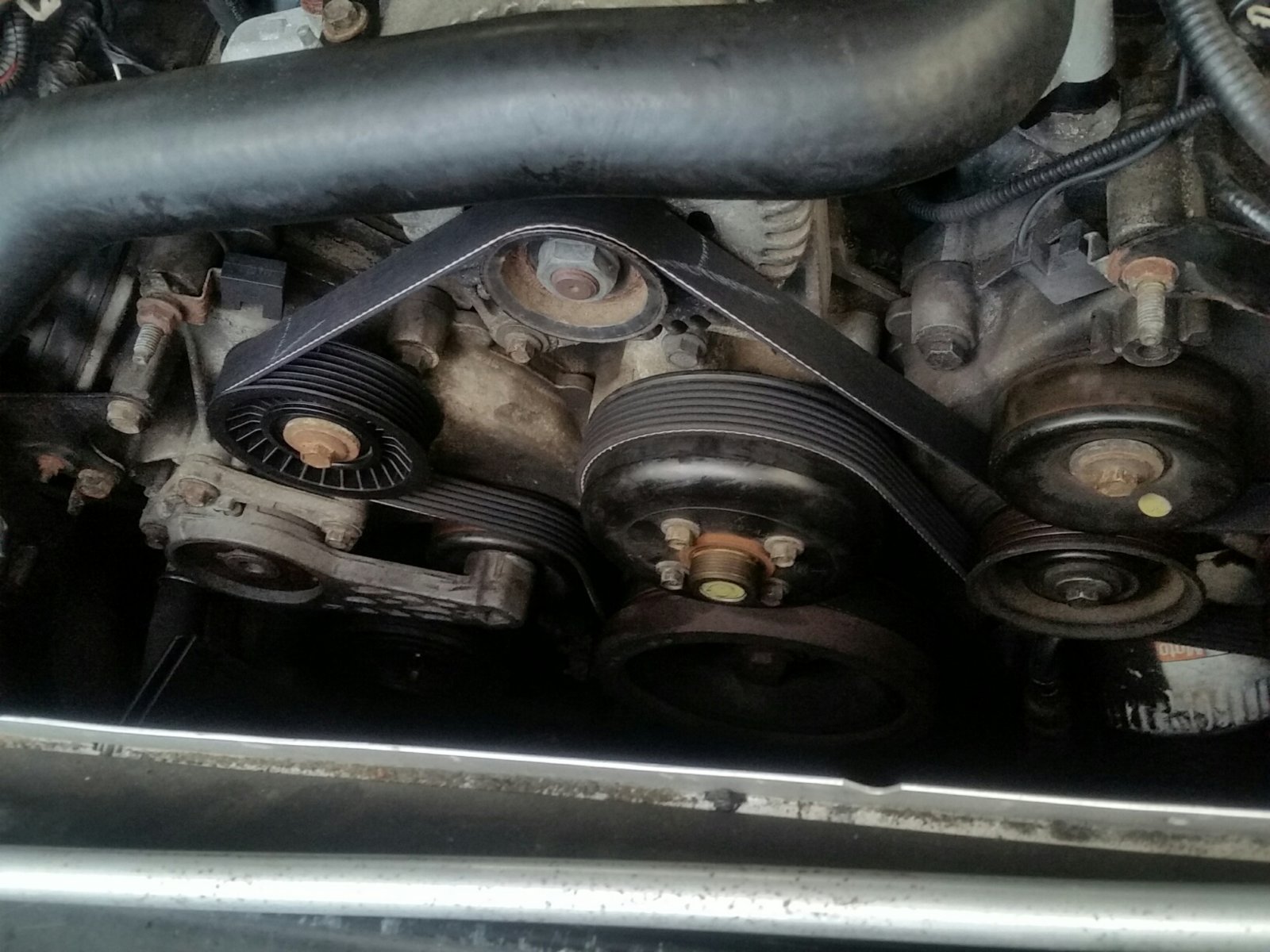
It will look like this after replacing the Idler Pulley (#2) and using the shorter belt:
AC Bypass 1.jpg

AC Bypass 3.jpg

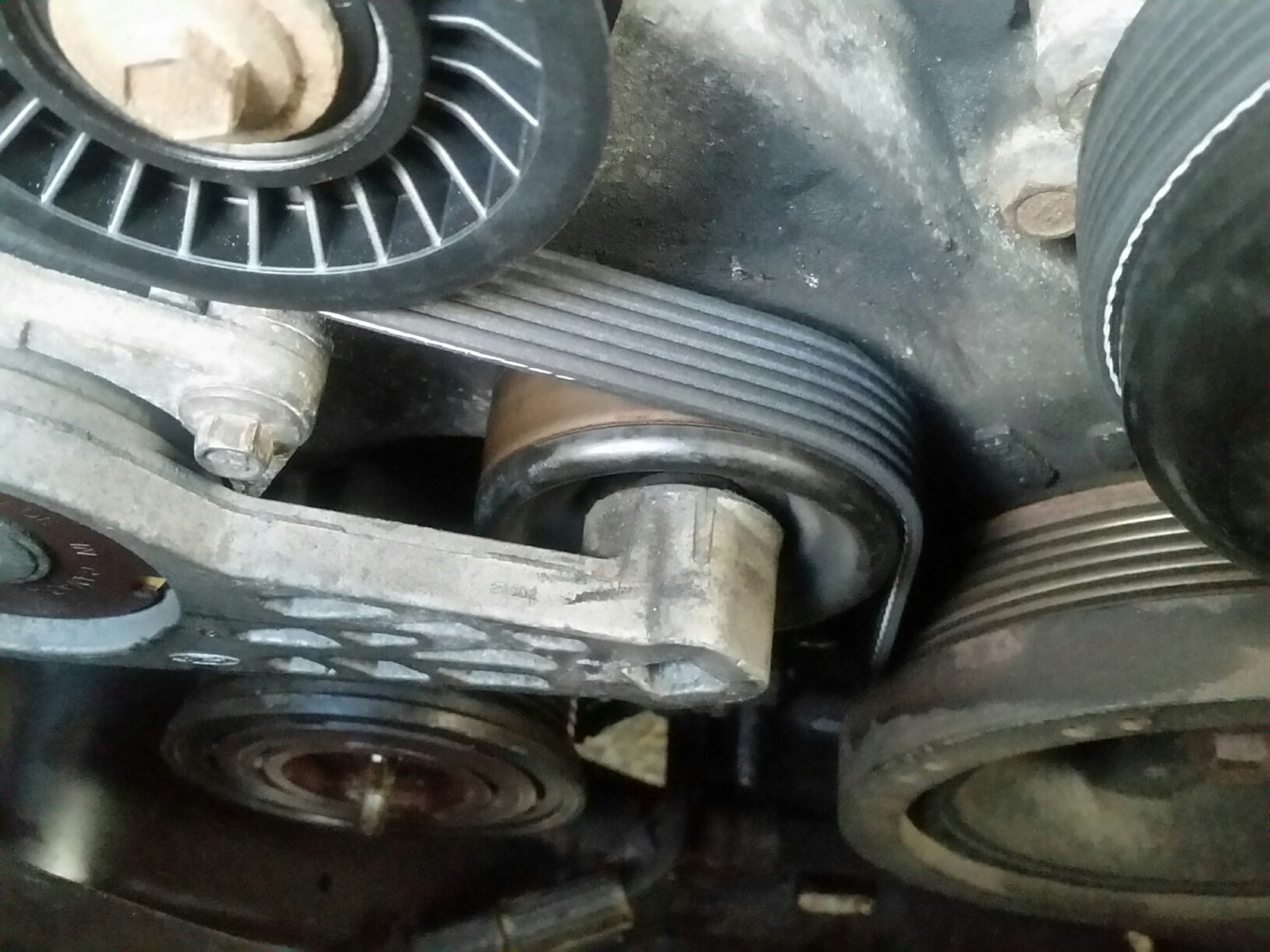
You'll notice the belt goes from #2 (the new black pulley in the top left), around the tensioner to the crank pulley #8.   Aka "Bypassing #9".

You should now be able to drive the car, however will not have A/C.

NOTE: I am not a certified mechanic nor am I a mechanical engineer.  Here are a few other things to consider.
  • A shorter belt with different sized pulleys and less of them will create a modified load on the engine.  The tensioner provides a 'factory' tension, so I think it should be fine, but it is not how the car was designed so there could be additional issues with this that I am not aware of.
  • The 'modified' load on the crankshaft is probably marginal compared to the load of say, towing a trailer with cement bags, but perhaps still worth consideration.  Comments welcome if you're a mechanical engineer and have thoughts on this.
  • I'm too tired to go back outside and take a photo, so credit to this forum post for great photos of a 4.6L V8, which is VERY similar to mine.
  • Be ready to make multiple trips to the store.  I got a Duralast 800K6 (79.?") the first time and it was too short.  No free lunch here, just measure the best you can using string/twine and hope you got it right.
  • If your A/C is fine now, but car is like mine and old, consider getting a belt and breaker bar for your trunk.  This can be done in a parking lot and could save you a tow for a long trip.
  • There are likely to be typos, quirks in grammar and terminology, or instances above where I mention pulley X and meant pulley Y.  This isn't rocket science so just use your sense and I think you will figure it out.

I wrote this blog because I couldn't find a great resource for the 2005 Ford Expedition 5.4L V8 Triton Engine.  Later I came across the forum post in the notes above, and finally got motivated to get that second belt (840K6).  I hope this is helpful for someone else.

6/16/19 Update:  After letting the Battery trickle charge overnight (it's been sitting for months), I fired it up this morning and it has been running for more than 25 minutes.  Took it for a spin down the street and all seems well for now.  Brakes are rusty, Power steering is a little tight, but hopefully all that smooths out with some additional use.

Sunday, March 24, 2019

Unity3D with QGIS and GIMP

It has been a long time since I have posted anything on here. I now have my own commercial drone (and FAA license) with a nice camera, and I've integrated several open source projects so that I can create 3D models from imagery/video (photogrammetry).

So now I am looking to create a sort of unity experience so that I can showcase places I've visited in 3D, and embed them with the larger general area.  I think I will have a good amount of learning to do before I'm able to create transitions from 'high altitude' scenes to 'low altitude' scenes where vegetation might appear.  I don't think I want to try to "Place Mass Trees" with this large of an area.

I am calling the concept "ODT" or "Open Digital Twin" (Copyright OTT LLC 2019).

As you can see, the result is actually pretty nice.  You can obtain stereo DEMs (digital elevation models) from the USGS using WMS service calls.  I then created a Normal Map, and also used USGS WMS to fetch a high altitude imagery color map.

When creating the height map for unity, you'll need to ensure you are saving the map as "Raw Image File" with Planar mapping.

There is still plenty of work to be done, but I thought this might be a fun update to get me back in the blogging mode.  It's been too many years, and I've come a long way from the original work I did with Java & Hadoop.  Hopefully these GIS and 3D skills will couple nicely with my enterprise experience to bring 3D to the enterprise!